Showing posts with label Windows. Show all posts

Wednesday, 2 November 2011

Free Download Microsoft Malicious Software Removal Tool

hello folks ,so as i previously posted about microsoft safetyscanner,now Microsoft has recently launched a new software called Microsoft Malicious Software Removal Tool.
Microsoft Windows Malicious Software Removal Tool is a freely-distributed virus removal tool developed by Microsoft for the Microsoft Windows operating system. Released on the 13th of January 2005, it is an on-demand anti-virus tool that scans the computer for specific widespread malware and eliminates the infection. It is automatically distributed to Microsoft Windows computers via Windows Update service but can also be separately downloaded.

The program is updated on the second Tuesday of every month via Windows Update, at which point it runs once automatically in the background and reports if malicious software is found. Alternatively, users can manually download this tool from Microsoft Download Center. It records its results in a log file located at %windir%\debug\mrt.log. To run it manually at other times, size of this tool is just around 12.79 MB.
                                                           Download
                                   
                                      okay now download my recommended  software


which is microsoft security essentials it's a Good Anti Virus freeware from microsoft that provides protection against different types of malware such as computer virus, spyware, rootkits and trojan horses for Windows
Microsoft Security Essentials runs quietly and efficiently in the background so that you are free to use your Windows based PC the way you want without interruptions or long computer wait times. so, get it now
                                    Downlaod

Download Microsoft Safety Scanner

hey guys this time i have a good news for you
(if you have no any premium antivirus).
so Recently Microsoft has launched A Scanner Called "Microsoft Safety Scanner "

but as usual,most of the free software are limited .so in this case the scanner will expire in 10 days ! so to solve this problem you have to download this scanner again from it's website so ,
in the new tool you will get it again but it's updated :)
this scanner is available in 32bit and 64bit ! so why are you waiting for ??
Download this Fokat  ka software
and Enjoy......
                                                  Download

Friday, 21 October 2011

Top reasons to use ubuntu instead using windows


ubuntu-vs-windows
Its very common that many people argue why should you use ubuntu or other Linux distro when you are in the world of windows or mac(even i asked the same question when i got a thought to change to ubuntu linux). So why should you use ubuntu(or just give it a try).


I also heard while so many people saying that linux sucks because it doesn't provide a good user interference and should deal with command lines, but its not true because ubuntu and other linux distro had changed a lot and even provides a good user interference. So, as a ubuntu lover i would like to give some reasons why you should use ubuntu or other linux distros(at least give it a try).

Its free: Yep!! ubuntu or other linux distro's are free and will be free always. They will surely save some grands isn't it.

No virus: When compared to windows ubuntu or other linux distro's are 99% more secure because linux will not recognize win32 executable's.

Evolve: By using ubuntu or other linux distributions you can evolve yourself in computing and internet.

Great performance: When compared to windows, ubuntu uses less system resources and gives you smooth performance. Unlike windows ubuntu runs on old pc's too.

Bug fix: You don't have to wait your life to get bugs fixed, you can track them easily from ubuntu community.

Free softwares: You don't have to use your dollars to buy softwares because all softwares are free!!! So that you are free from pirated softwares.

Highly Customizable:You can totally customize your desktop and other parts of ubuntu with ease, you can also make its desktop look like windows or mac or you can be more crazy with your own customization.

Easy Upgrades: Yes its true that you don't have to waste your time to upgrade your softwares individually because you can do it with only one application called update manager, thus using less system resources and getting great performance.

Ubuntu community: One of the greatest and biggest community which helps in providing you with support and answers to your questions and doubts.

All in one: You don't have to install different softwares like MS office, chat applications, photo editing etc..., because ubuntu comes with free(equal and even better then your paid softwares) and pre installed softwares, So that you can start your work right away.

Games: Who said linux is not for gamers, linux has 100's and 1000's of games which you can get for free of charge i.e they are open source.

The reasons i showed here are just foot of a mountain, if you are a ubuntu or linux lover(windows and mac user too) share your views.
Hope you enjoy linux distro's and please support ubuntu.

Wednesday, 19 October 2011

Full Computer Hardware Information with InfoTool

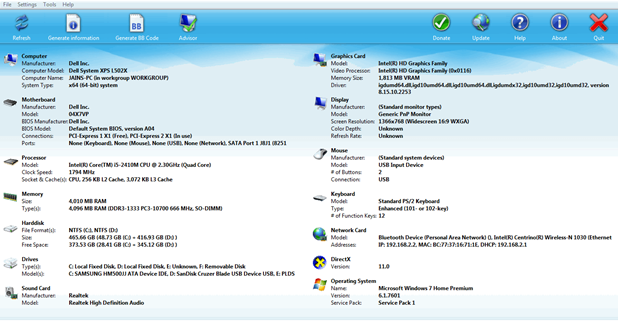
Getting best hardware information about the Windows Machine can be hard, but now we have InfoTool which can get all desired information what you want so that you can get to know everything about your Windows Machine.

InfoTool is an awesome software from Flittskikker which shows exactly every useful information about your Windows Machine. You can check the screenshot below .:
Full Computer Hardware Information with InfoTool
So now the process to use this software is really easy you simply have to download the software from creators official website and than you have to start the installer. After you run the installer you have to select the language and than click next and than choose I Agree and start the installation.
Now you can simply enjoy this amazing software for free, it will ask you to donate some money if you can please donate or use this software for free. So have fun grabbing some useful information about your machine.

Friday, 14 October 2011

Repairing Ur Windows XP in just 8 Commands

Millions of people across the globe turn off the computer and go to bed every night, but a few of us have turned our PCs on the next day not to the standard Windows XP loading screen, but instead to thos most dreaded of errors.

Most of us have seen it at one time or another; perhaps on our own PC, the PC of a loved one, or perhaps a PC at your place of employment. The system spends weeks or months operating in a smooth fashion, taking you to the far reaches of the wide, wibbly web, and after one particularly late evening of browsing and gaming, you shut your PC off and go to bed. Millions of people across the globe do just this every night, but a few of us have turned our PCs on the next day not to the standard Windows XP loading screen, but instead this dreaded error:

image


Windows could not start because the following file is missing or corrupt:
\\WINDOWS\\SYSTEM32\\CONFIG\\SYSTEM
You can attempt to repair this file by starting Windows Setup
using the original Setup CD-ROM.

Select ‘R’ at the first screen to start repair.
Which renders your PC inaccessible from the standard boot procedures of Windows XP. You try safe mode, to no avail. You’re particularly savvy and try issuing the FIXBOOT and FIXMBR commands in the Windows recovery console, but after each reboot, you’re merely greeted with the same obnoxious and terrifying blue screen of death that’s preventing you from accessing your precious data.
Perhaps you’ve also seen these error screens:
Windows NT could not start because the below file is missing or corrupt:
X:\\WINNT\\System32\\Ntoskrnl.exe_________________
Windows NT could not start because the below file is missing or corrupt:
X:\\WINNT\\System32\\HAL.dll_________________
NTLDR is MissingPress any key to restart_________________
Invalid boot.iniPress any key to restart
Allow me to build tension by prefacing the end-all/be-all solution with my background: Having worked for the now-incorporated Geek Squad branch of Best Buy Corporation for the better part of eight months, I have seen dozens upon dozens of systems come through our department with any one of these errors, brought in by customers who are afraid they did something, have a virus, or are in jeopardy of losing their data. Prior to my discovery of an invaluable sequence of commands, our standard procedure was to hook the afflicted drive to an external enclosure, back up a customer’s data and then restore the PC with the customer’s restore discs or an identical copy of Windows with the customer’s OEM license key. If the customer wasn’t keen on the applicable charges for the data backup, we informed them of the potential risks for a Windows repair installation (Let’s face it, they don’t always work right), had them sign a waiver, and we did our best.
Neither of these procedures are cheap in the realm of commercial PC repair, nor do they inspire a tremendous level of confidence in the technician or the hopeful client.
In an effort to expedite our repair time and retain the sanity of myself and other technicians, I received permission to undertake a case study on a variety of PCs currently in service that exhibited any of the aforementioned symptoms, and I took it upon myself to find a better solution. After crawling through the MSKB, Experts Exchange, MSDN and sundry websites all extolling the virtues of a solution to these problems, I only found one that worked, and it has been reliably serving me for the better part of two weeks on seventeen PCs to date.
The process is simple: Get to the Windows Recovery Console for your particular Windows installation, navigate to the root letter of your installation (C: in most cases), issue eight commands, and reboot. The cornerstone of this process is a command called “BOOTCFG /Rebuild” which is a complete diagnostic of the operating system loaded into the recovery console; the purpose of the command is to remove/replace/repair any system files that were preventing the operating system from loading correctly. Amongst the files it fixes are:
  • Windows Hardware Abstraction Layer (HAL)
  • Corrupt registry hives (\\WINDOWS\\SYSTEM32\\CONFIG\\xxxxxx)
  • Invalid BOOT.INI files
  • A corrupt NTOSKRNL.EXE
  • A missing NT Loader (NTLDR)
The command process may apply to other types of blue screens or Hive/HAL/INI/EXE/DLL-related stop errors, but I have not had the luxury of computers in this type of disrepair. The process I am about to outline is virtually harmless, and if you feel you may be able to correct your PC’s boot-time blue screens and stop errors with the sequence, feel free to try.
Let us now begin with a step-by-step instruction for correcting these issues.


Getting to the Windows Recovery Console

  1. Insert your Windows XP CD into your CD and assure that your CD-ROM drive is capable of booting the CD. Configuring your computer to boot from CD is outside of the scope of this document, but if you are having trouble, consult Google for assistance.
  2. Once you have booted from CD, do not select the option that states: “Press F2 to initiate the Automated System Recovery (ASR) tool.” You’re going to proceed until you see the following screen, at which point you will press the “R” key to enter the recovery console:
xp_src_welcome
  • After you have selected the appropriate option from step two, you will be prompted to select a valid Windows installation (Typically number “1″). Select the installation number, (As mentioned, “1″ in most cases), and hit enter. If there is an administrator password for the administrator account, enter it and hit enter. You will be greeted with this screen, which indicates a recovery console at the ready:
xp_src_console


Proceeding With the Repair Functions

  • There are eight commands you must enter in sequence to repair any of the issues I noted in the opening of this guide. I will introduce them here, and then show the results graphically in the next six steps. These commands are as follows:
    • C: CD ..
    • C: ATTRIB -H C:\\boot.ini
    • C:ATTRIB -S C:\\boot.ini
    • C:ATRIB -R C:\\boot.ini
    • C: del boot.ini
    • C: BOOTCFG /Rebuild
    • C: CHKDSK /R /F
    • C: FIXBOOT
  • To “Go up a directory” in computing is to revert back to the directory above the current folder you’re operating in. If, for example, I’m in the C:WINDOWSSYSTEM32 directory, and I want to get at a file in the WINDOWS directory, I would merely type CD .. and I would be taken out of the SYSTEM32 folder and up one level to WINDOWS. We’re going to do the same thing here from the WINDOWS folder to get to the basic root of C:
xp_src_recurse
Now that we are at C: we can begin the process of repairing the operating system
and that begins with modifying the attributes of the BOOT.INI file. Briefly, BOOT.INI controls what operating systems the Windows boot process can see, how to load them, and where they’re located on your disk. We’re going to make sure the file is no longer hidden from our prying eyes, remove the flag that sets it as an undeletable system file, and remove the flag that sets it as a file we can only read, but not write to. To do this, we will issue three commands in this step:
  • C:ATTRIB -H C:\\BOOT.INI
  • C:ATTRIB -R C:\\BOOT.INI
  • C:ATTRIB -S C:\\BOOT.INI
to remove the Hidden, System and Read Only flags.
xp_src_attributes
Now that we’ve modified the attributes for the BOOT.INI file, it’s up for deletion. The syntax for it is simple: { DEL | FILE NAME }, e.g., C:DEL BOOT.INI deletes the BOOT.INI file.
xp_src_delete
Now for the most important step of our process, the BOOTCFG /REBUILD command which searches for pre-existing installations of Windows XP and rebuilds sundry essential components of the Windows operating system, recompiles the BOOT.INI file and corrects a litany of common Windows errors. It is very important that you do one or both of the following two things: First, every Windows XP owner must use /FASTDETECT as an OS Load Option when the rebuild process is finalizing. Secondly, if you are the owner of a CPU featuring Intel’s XD or AMD’s NX buffer overflow protection, you must also use /NOEXECUTE=OPTIN as an OS Load Option. I will demonstrate both commands for the purpose of this guide, but do not set NOEXECUTE as a load option if you do not own one of these CPUs. For the “Enter Load Identifier” portion of this command, you should enter the name of the operating system you have installed. If, for example, you are using Windows XP Home, you could type “Microsoft Windows XP Home Edition” for the identifier. This gives the process some authenticity, if you’re keen on being a perfectionist.
xp_src_rebuild
This step verifies the integrity of the hard drive containing the Windows XP installation. While this step is not an essential function in our process, it’s still good to be sure that the drive is physically capable of running windows, in that it contains no bad sectors or other corruptions that might be the culprit. No screenshot necessary here! Just type CHKDSK /R /F at the C:> prompt. Let it proceed; it could take in excess of 30 minutes on slower computers, when this is finished move on to the seventh and final step.
This last step also requires no screenshot. When you are at the C:> prompt,
simply type FIXBOOT. This writes a new boot sector to the hard drive and cleans up all the loose ends we created by rebuilding the BOOT.INI file and the system files. When the Windows Recovery Console asks you if you are “Sure you want to write a new boot sector to the partition C: ?” just hit “Y,” then enter to confirm your decision.


Results and wrap-up

It’s time to reboot your PC by typing EXIT in the Windows Recovery Console and confirming the command with a stroke of the enter key. With any luck, your PC will boot successfully into Windows XP as if your various DLL, Hive, EXE and NTLDR errors never existed. You’ve just saved yourself from many hours of work, frustration, potential data loss and shelling out your hard-earned greenbacks at a brick’n'mortar operation.


Thursday, 13 October 2011

6 Fabulous HyperDesk Themes for XP

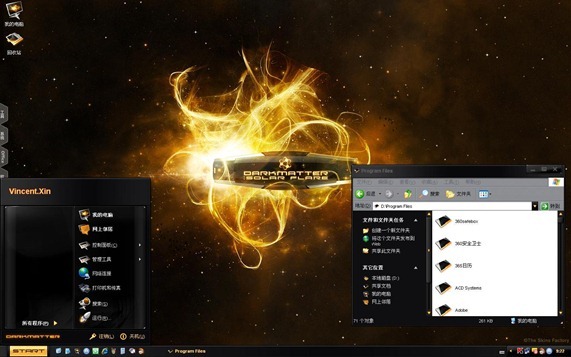
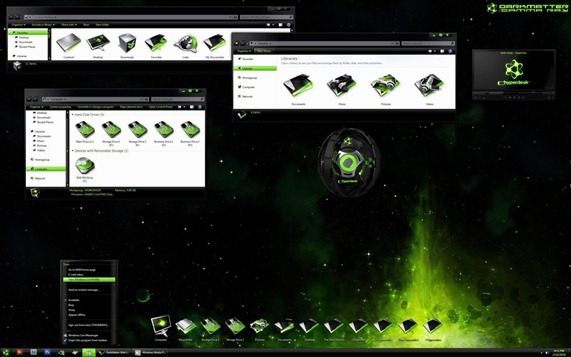
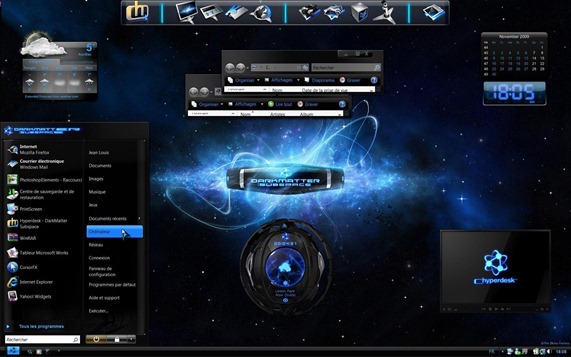
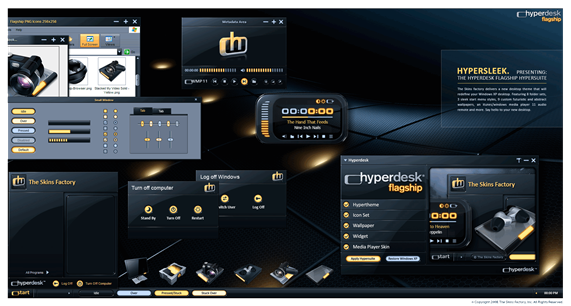
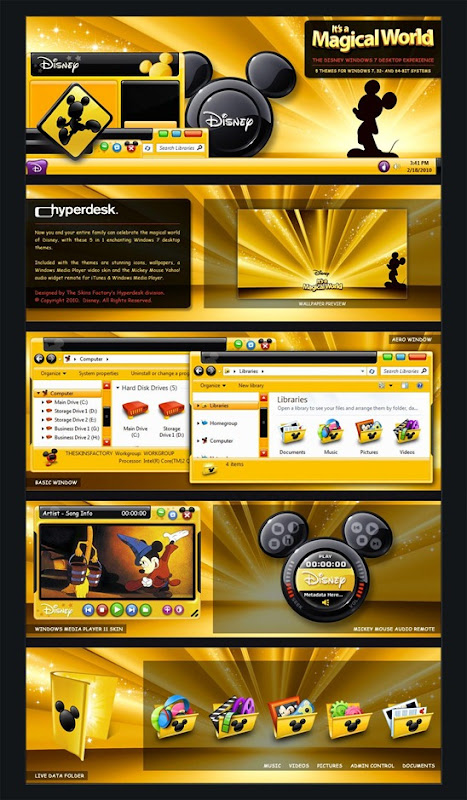
Here I have some Fabulicious Themes just from Hyperdesk when I was surfing a blog just to design out your Desktop and give it a Superior look so check the screenshots below and grab the download link to customize your desktop too.Take a look in this amazing pics for demo....
Hyperdesk Flagship
Hyperdesk.Darkmatter-Solar.Flare
Hyperdesk Themes Hyperdesk Themes Hyperdesk_Flagship_Hypersuite_by_skinsfactoryHyperdesk Themes
Password: hackinguniversity

Sunday, 2 October 2011

Windows Xp RegEdit Hacks


Force windows XP to reboot upon crashing:
This registry edit will cause your system to reboot itself automatically upon crashing. This can be useful if you have a reason for keeping your system on 24/7:
1.Open REGEDIT
2.Navigate to 'HKEY_LOCAL_MACHINE\SYSTEM
\CurrentControlSet\Control\CrashControl'
3.Edit the 'AutoReboot' value to '1'

Stop Error Messages from Displaying on Startup
If you constantly see an error message that you can't get rid offor example, from a
piece of software that didn't uninstall properly and continues to give errors on
startupyou can disable it from displaying on startup.
1.Run the Registry Editor and go to HKEY_LOCAL MACHINE\SYSTEM\CurrentControlSet\Control\Windows. (This key holds a variety of Windows system settings, such as the location of your system directory.) 
2.Create a new DWORD called NoPopupsOnBoot and give it a value of 1.
3.Exit the Registry and reboot for the setting to take effect. To disable it, either delete
    the DWORD value or give it a value of 0.

Change the name of Recycle bin
To change the name of the Recycle Bin desktop icon,
1.Click Start then goto Run, write Regedit and press Enter. It opens Registry Editor. 
2.Now in Registry Editor go to:
HKEY_CLASSES_ROOT/CLSID/{645FF040-5081-1
01B-9F08-00AA002F954E}
and change the name "Recycle Bin" to whatever you want (don't type any quotes).

Speed up your Star Menu
Hey.. Speed up ur Start Menu...
As...The default setting of Windows causes a slight delay when opening the sub categories of the start menu.....
That is why we need to hover the mouse on it for about half a second.....
You can change this default setting by following these steps.....
1. Go to start==> run==> Type regedit. Press enter.....
2. Navigate to "HKEY_CURRENT_USER----> Control Panel."
3. Click on Desktop.
4. On the right pane look out for 'MenuShowDelay'....(If you can't find it right-click and create a new 'Multi-String Value' and rename it as 'MenuShowDelay')
5. The default setting is 400....
6. Double click it to modify it....
7. Set it to 0 and there will be no delay...
8. Exit registry and reboot.
However making it zero makes it difficult to move the mouse without accidentally opening other folders. So try giving some lower values and choose the one which best suits you. ..
 
Reducing the Wait Time
When you start to shut down Windows XP, it has to quit, or "kill," any live
applications or processes that are currently running. So close all applications first.
However, some applications and processes are always running in the background.
You can reduce the amount of time that Windows XP waits for those applications and
processes to close before Windows XP kills them
1. Open registry editor
2. Navigate to HKEY_USERS\.DEFAULT\Control Panel\Desktop. Set the
WaitToKillAppTimeout and set the value to 1000. Select the HungAppTimeout
\newline value and set it to 1000 as well.
3. Navigate to HKEY_LOCAL_MACHINE\System\CurrentControlSet\Control.
Select the WaitToKillServiceTimeout value and set it to 10000.
4. Close the Registry Editor

Block USB in Windows Xp
1. Start -> Run -> regedit ->Find the Hkey_Local_Machine>System>Current Control set>Services>USBStor.
Look at the right pain and find out the Start where value of the start would be 0000000(3) edit the value by double mouse click and type 4 and save.
2. Restart ur pc.

Disable Right Click on the Desktop:
1. Open Registry Editor.
2. Navigate to the follwing Registry Value.
HKEY_CURRENT_USER \ Software \ Microsoft \ Windows \ CurrentVersion \ Policies \ Explorer
3. In the Right Pane add a new DWORD and give it a name of NoViewContextMenu.
4. Set the DWORD value to 1.
5. Reboot

Auto window refresh
Whenever you make a change to your windows you have to press F5 or do a manual refresh.
With this tweak you can tell windows to increase the rate at which it does the refreshing.
1.Open the registry.
2.Navigate to the key:
HKEY_LOCAL_MACHINE\SYSTEM\CurrentControlSet\Control\Update. Create a newDWORD value, or modify the existing value, named UpdateMode and set it to equal "0" for faster updates. 
3.Restart Windows for the change to take effect

Check OUt The Ultimate tweak tab for More...

Saturday, 1 October 2011

How to Hack Windows Administrator Password


This hack will show you how to reset Windows administrator password (for Win 2000, XP, Vista and Win 7) at times when you forget it or when you want to gain access to a computer for which you do not know the password.
Most of us have experienced a situation where in we need to gain access to a computer which is password protected or at times we may forget the administrator password without which it becomes impossible to login to the computer. So here is an excellent hack using which you can reset the password or make the password empty (remove the password) so that you can gain administrator access to the computer. You can do this with a small tool called  Offline NT Password & Registry Editor.


This utility works offline, that means you need to shut down your computer and boot off your using a floppy disk, CD or USB device (such as pen drive). The tool has the following features.
  • You do not need to know the old password to set a new one
  • Will detect and offer to unlock locked or disabled out user accounts!
  • There is also a registry editor and other registry utilities that works under linux/unix, and can be used for other things than password editing.
 

How it works?

 
Most Windows operating systems stores the login passwords and other encrypted passwords in a file called sam (Security Accounts Manager). This file can be usually found in \windows\system32\config. This file is a part of Windows registry and remains inaccessible as long as the OS is active. Hence it is necessary that you need to boot off your computer and access this sam file via boot. This tool intelligently gains access to this file and will reset/remove the password associated with administrator or any other account.
The download link for both CD and floppy drives along with the complete instructions is given below
Offline NT Password & Reg Editor Download
It is recommended that you download the CD version of the tool since floppy drive is outdated and doesn’t exist in today’s computer. Once you download you’ll get a bootable image which you need to burn it onto your CD. Now boot your computer from this CD and follow the screen instructions to reset the password.
 

Another simple way to reset non-administrator account passwords

 
Here is another simple way through which you can reset the password of any non-administrator accounts. The only requirement for this is that you need to have administrator privileges. Here is a step-by-step instruction to accomplish this task.
1. Open the command prompt (Start->Run->type cmd->Enter)
2. Now type net user and hit Enter
3. Now the system will show you a list of user accounts on the computer. Say for example you need to reset the password of the account by name John, then do as follows
4. Type net user John * and hit Enter. Now the system will ask you to enter the new password for the account. That’s it. Now you’ve successfully reset the password for John without knowing his old password.
So in this way you can reset the password of any Windows account at times when you forget it so that you need not re-install your OS for any reason. I hope this helps.
Feel free to comment.

Wednesday, 28 September 2011

Windows 7 God Mode


Hey... all the geeks..... Do u know about the windows 7 GOD MODE feature ???
For this just do like what I am saying under here---
  • Create a New Folder
  • Rename it to Everything.{ED7BA470-8E54-465E-825C-99712043E01CWindows 7 god mode
  • After completing the rename u will see a magic..
  • ED7BA470-8E54-465E-825C-99712043E01C this part will despair....
  • and double-clicking the new folder will display shortcuts to functions in the Action Centre, the Network and Sharing Centre, Power options, troubleshooting tools, user accounts and others - more than 260 options in total.
    Windows 7 god mode 


    Monday, 26 September 2011

    Hacking Universe Ultimate Tweak pack.

    Registry Edits for Windows XP and windows 7
    "Tweaks and Tips"
    Click on each numbered line..Every one has a unique and anonymous link..
    .
    To use the Regedits:  Save the REG File to your hard disk. Double click it and answer yes to the import prompt. REG files can be viewed in Notepad by right clicking on the file and selecting Edit.

    To use the VBS Files: Download .vbs file and save it to your hard drive (you may want to right click and use Save Target As).  Double
    click the vbs file. You will be prompted when the script is done.
    NOTE: If your anti-virus software warns you of  a "malicious" script, this is normal if you have "Script Safe" or similar technology enabled.  These scripts are not malicious, but they do make changes to the System Registry.

    Disclaimer:  These registry edits and script files are presented "as is".  Every effort has been made to ensure the files work as stated.  I assume no responsibility for your use of these files.
    1. Add XP TweakUI Icon to the Control Panel Add ControlUserPasswords2 To Control Panel - Remove
    2. Increase Folder View Size Limit to 8000 Add Folder to Start Menu - Replace MP or MM
    3. Restore Missing Toolbars EXE or VBS Disable CD AutoRun for Home or Pro
    4. Repairs the Icon View Set Numlock State On or Off at Startup
    5. Restore Safely Remove Hardware Icon Enable/Disable Administrator on Welcome Screen


    6.   Restore System Default Sounds Fix the Ding.Wav File
    7.   Increase Balloon Tip Display Time Change Registered Owner and Organization
    8.   Release/Renew Bat File Remove Internet Explorer Branding
    9.   Disable the Windows Logo Keys Restore OE to the E-mail List in Internet Options
    10. Enable CD AutoPlay for Pro Disable Media Player Update Message


    11. Enable/Disable Balloon Tips or Disable All Disable Media Players Play List
    12. EXE (lnk and regfile) Fix for Windows XP Link File Fix for Windows XP
    13. Disable "No Computers Near Me" Restore IE AutoComplete Password Prompt
    14. Uninstall/Reinstall NetMeeting Remove/Disable CD Burning Capability
    15. Remove Common Tasks from the Desktop Disable Search Assistant - Undo


    16. Active Desktop - Enable or Disable Add Recent Documents to the Classic Menu
    17. Restore AutoPlay Icon Restore Thumbnail Views in XP
    18. Add Google as Primary Search - Undo Search Opens When Double Clicking A Folder
    19. Add Outlook Express as Default Client Correct the Sort Order in Windows XP
    20. Restore IE Desktop Shortcut Icon Functions Disable the File Menu in Windows Explorer


    21. Disable System Beeps Add Empty Recycle Bin to the Right Click
    22. Hide Users on Welcome Screen - Unhide Disable the Security Tab - Hardware Tab
    23. Run Startup Programs from the CMD Prompt Allow or Disable CD Burn Options
    24. Remove File/Edit/View....  Restore  Clear Search History under Search
    25. Prompt for Password on Resume - Undo Open With Notepad for Files with No Extension


    26. Add Command Line to the Right Click Disable Internet Search for File Extensions
    27. Secure Desktop - Undo Remove Set Program Access & Defaults - Undo
    28. Control Panel Icons are Missing Windows Update Restriction Error (Network)
    29. Run Command - Reinstalling Internet Explorer Disable Getting Started Welcome Screen - Logon
    30. Windows XP Doesn't Save User Settings Change Associations from the Run Command


    31. Windows XP Startup - Boot Performance Disable Changes Made to the Start Menu - Undo
    32. KeepRas Connection (FUS) Exe or Reg Remove the Search Button
    33. Remove Toolbars from Taskbar Right Click Remove Users Folder From the Start Menu
    34. Restore Fast User Switching Super Fast Switcher PowerToy (Winkey + Q)
    35. Creates copies of REGEDIT, MSCONFIG and Task Manager Drive Rescue - Undelete and Data Recovery Tool


    36. Recover and Restore Deleted Files User Profile Hive Cleanup Service
    37. Clear Form Fields in AutoComplete AutoComplete Mode Enabled or Disabled
    38. Set Auto Disconnect Back to Default Remove Added Links from the Tool Menu
    39. AutoRuns - All Programs Running Boot/Login Delete an Undeletable File in Windows XP
    40. Enhance CMD Quick Edit Options XP Info - Verifies Activation Components


    41. Disable the Indexing Service (cisvc.exe) Clear Recent File Lists
    42. Hide the Common Dialog Places Bar Remove CD Burning Features - Undo
    43. Hide the Display List of Recent Files Hide the Common Dialog Back Button
    44. Add Switch User to the Start Button & RC Remove  Access to all Windows Update Features
    45. Add Copy To/Move To (Right Click) - Undo Restore the Welcome Screen - Gina.Dll Error


    46. Content Advisor On (Place in Startup Folder) Content Advisor Off (Place in Startup Folder)
    47. Regedit - Save to Favorites Regedit - Clear Last State
    48. Disable Windows Installer Rollback Disk Cleanup/All tmp-Compress Old Files Freezes-Undo
    49. Old Style Search Engine On or Off Add Toolbar to Outlook Express (OETool)
    50. Clear History of Typed URL's Prevent My Documents and Recent Documents


    51. ScreenSaver Disable/Enable or Tab Missing Enable the Task Manager - Disable Task Manager
    52. Shutdown.Exe - Andrej Budja Add a Website Link to the Start Menu
    53. Remove Past Items From Notification Area Hide or Show Inactive Icons -  Notification Area
    54. Restore Admin Tools (.msc) Save Settings on Exit - Don't Save Settings
    55. Restore Recent Documents, My Documents Increase Internet Explorer Downloads to 10 - Undo


    56. Remove Files Stored on this Computer Undo Enable or Disable Right Click Context Menu
    57. Restore winhlp32.exe for XP or XPSP1 Restore the Run Command
    58. Recovery Console Fix for XP SP1 Restore User Default Pictures
    59. Disable Messenger in Outlook Express Remove "For Testing Purposes Only" - Desktop
    60. Email Page - IE (right click) w/ Clickable Link Correct IE Window Placement (Reg or VBS)


    61. Change Provided By in IE Restore/Add Show Desktop to Quick Launch Bar
    62. Disable the Desktop Cleanup Wizard - Undo Separate Process for the Desktop and Explorer
    63. Home Page Lock - Home Page Unlock Start Page Guard for Internet Explorer
    64. Reset OE for Send To , Mail To , Send Mail Replace/Repair the Recycle Bin in Windows XP
    65. Disable Low Disk Space Message Search Google  Address Bar, Q#'s, MS-KB, TN


    66. Error 1606 ... Access Network Location Prevent Programs from Stealing Focus - Undo
    67. Run Scheduled Tasks w/o PW Home - Undo Enable Show Status Bar
    68. Set Volume Per Program/Application Page Cannot be Found and/or DNS/Server Error
    69. Reuse Same Window Internet Explorer-Undo Startup/Shutdown/Logon/Logoff Status Messages
    70. Search is Missing from the Start Menu - To remove Clear Recent Documents or Undo


    71. Speed up Moving or Copying Zip Files WinFile.Exe
    72. Enable/Disable Desktop Icons SendTo Any Folder and SendTo Clipboard
    73. Enable or Disable Personalized Menus - Start Enable or Disable Personalized Menus - Favorites
    74. AVI Search Remove - Restore Network Places Missing from the Start Menu
    75. Search Shows Yellow Triangle with ! MS Windows File Extension Identifier


    76. Power Off or Reboot After Shutdown Auto End Tasks to Enable a Proper Shutdown - Undo
    77. Disable "Log on using dial-up connection" Uninstall NetMeeting
    78. Common Tasks View - Disable or Enable Enable or Disable Winkeys
    79. Speedup Browsing (Explorer and IE)  Undo Speedup Network Logon/Boot
    80. Disable or Restore Picture and Fax Viewer Enable the Welcome Screen


    81. Increase Slide Show Timeout Disable Pop-Up Error Messages Upon Boot
    82. Disable or Enable Check Disk Upon Boot Change Program File Directory
    83. Change File Time Created/Modified/Accessed Properties Missing From My Computer
    84. Restore Disk Cleanup (cleanmgr) Windows Installer Logging or Cleanup Utility
    85. Set Detail View for all Folders Open/Save As Restore Compressed Zipped Folders Association


    86. Taskbar Grouping by # or Least , Most Used Shortcut to Search
    87. Dial-up Modem or PPPoE is Unavailable Check E-Mail from Anywhere
    88. Set Default Web Browser in Windows Hide Inactive Icons and More
    89. Easy Log Off, Shutdown or Lock Find File Information (Name, Version and Path)
    90. Expand ReadMe.Txt Zip Files w/o Opening Read Reg, VBS Edits w/o Opening (also File info)


    91. Disable or Enable AutoDial Customize Folder Shell Extensions
    92. Show Full URL Path links in IE Status Bar Change Online Support Link under IE/Help
    93. Logon Using a Dial-Up Connection Prompt Remove Links folder from IE/Favorites - Undo
    94. Windows Installer Fix - Winnt for Windows Enable Notepad Status Bar with Word Wrap
    95. Disable Messenger Service (Pop-up Spam) Change the Warning Message in Messenger


    96. Disable Control/Alt/Delete Add SpellChecker & Button to Internet Explorer
    97. Decrease the Size of Taskbar Buttons - Undo Increase the Size of Taskbar Buttons - Undo
    98. Enable/Disable LogOff - Classic or New Create Start Up List or Start Up Log
    99. Restore the Task Bar to Default Settings Security Hotfix Checker Tool
    100. Disable Unread Mail on the Welcome Screen - Undo Check and Open Desktop Paths or MP or MM


    101. Prevent IE History Being Removed - Undo Disable Show My Pictures Toolbar in IE
    102. Hide System Desktop Icons  Hide IE Icon from the Desktop Toolbar
    103. Enable Mouse Snap To Option/Function - Undo Save As - Disable: Back, MRU and Places Bar
    104. Remote Task Manager Active Registry Monitor
    105. Disable Remote Dial-Up Connections Disable "Save As" File History


    106. Lock Default Browser Restore Hide Underlined Letters - Keyboard Nav
    107. Change the Sort Order back to Pre-XP Restore the Device Manager
    108. FavesToGo - Save Favorites Quickly FavOrg - Restore and Save Favorite Icons
    109. Change Computer Name Empty Temporary Internet Files on Exit
    110. Add Message above User Name & Password Add Dialog Box/Message to Logon and Shutdown


    111. Restore Run As - Which user account issue Change the Name of the Start Button
    112. Add "Log Folder Contents" to SendTo Menu Show File Information
    113. Enable the Task Manager - Disable - Repair BootVis  - Performance Trace Visualization Tool
    114. Redirect Help and Support to a link of choice - Undo Enable Reinstallation of Internet Explorer or OE
    115. Rename/Remove the Recycle Bin Read/Find your Product ID Number


    116. Prevent Spyware from Being Installed Show All Hidden Devices in the Device Manager
    117. Restore Taskbar and Start Menu Add Trillian to the Tools Menu and Toolbar in IE
    118. Change Notification Error Wave File Add Folders to the "Save As" Dialog - Undo
    119. Change the Hard Drive Icon Change the Folder Icon &/or Opened Folder Icon
    120. Mouse/Left Hand Users Undo - Welcome Screen List My Computer or My Documents or  Desktop First


    121. Increase Icon Cache Change Icon Wrap to One Line on the Desktop
    122. Show All Bitmap Views IE/Windows Update - Change Text or Remove
    123. Add Notepad as a Right Click Item Disable Changes to File Associations - Undo
    124. Add Explore CD-Rom to Start Button (R/C) Add a Folder to the Start Button - Right Click
    125. List Page File Location, Min and Max System Up Time


    126. Show Boot Configuration(s) View Log Events by Code or List or Clear
    127. Disable Windows File Protection Show Super Hidden File Extensions - Undo
    128. Task Bar Lock - Task Bar Unlock Restore Desktop and Screensaver Tabs
    129. Restore Folder Options Under Tools Control the F Lock Key Functionality State/Status
    130. Add a Folder to My Computer and Desktop Add Clipboard to the Control Panel


    131. Disable the Shutdown Command/Enable Change My Computer Name to User Name-Undo
    132. Change and/or Add an HTML Editor Disable Searched Word Being Highlighted in Blue
    133. Restore Most Frequently Used - Undo Replace AM & PM (Clock) with word of Choice
    134. Hide All Notification Area Icons - Undo Hide the Clock in the Notification Area - Undo
    135. Clear Read-Only Attributes Restore Accessibility Options to Default Settings


    136. Search for All File Types Show IP Address on the Desktop, plus more.
    137. Remove "Open With" from Context Menu Disable Stand-by:  Per User or Per System
    138. New Folder Hotkey - SM, Desktop, Specify Google Search from IE's Right-Click Menu
    139. Restore Zip Folders to Default in XP Add to or Modify the "New" Menu Listings
    140. Rename Files and Folders En Masse Show Slide Show of Attached Pictures in OE


    141. Help, CHM, HH Checker/Fixer Add a Custom Splash Screen for User Logon's
    142. Disable the Script Debugger in IE Allow Wallpaper/Background Changes - Disable
    143. Enable or Disable the Splash Screen for OE Enable or Disable the Splash Screen for IE
    144. Clear Wallpaper Most Frequently Used List Add (OE) Send E-Mail to the Right Click
    145. Control Panel - Classic or Category View Clear NetMeeting Call History


    146. Retrieve the Class Name for a File Extension Add or Remove Programs Restriction - Undo
    147. Add Internet E-mail Message to New Menu Restore My Briefcase to the Desktop - Syncapp.Exe
    148. Set All Search Options to Active - Undo Clear Disabled Items from Msconfig Startup & Selective
    149. Clear Cache on Reboot Add Taskbar Grouping Options to the Start Menu
    150. Add Open New Window to the Right Click Clear Last User on Boot Screen in XP - Undo


    151. Rename "Search" on the Start Menu - Undo Set "Search" Advanced Options as Default
    152. Rename "Run" on the Start Menu - Undo Rename "Help and Support" on Start Menu-Undo
    153. Restore Missing "New" and Text Doc Change Size of Desktop Wallpaper to Suit - Undo
    154. Disable Shut Down Per User Remove "All Programs" from Start Menu - Undo
    155. Enable/Disable Show Hidden Files/Folders Repair Loss of Internet Access/Certain Web Sites


    156. Disable SSPD and UPNP Services - Undo Clear the Run Command MRU List
    157. Prevent Automatic Folder and Icon Refresh - Enable Prevent Delay Opening My Computer/Explorer
    158. Change the Recycle Bin Icon - Undo Remove Throbber from IE & Explorer - Undo
    159. Minimize Any Program to System Tray Add "Show Related Links" to Internet Explorer
    160. Enable Monitor Power-off on Logon Screen Disable or Enable Pin to Start Menu - Right Click


    161. Hide Start Menu Subfolders - Undo Restore: On Resume, Display Welcome Screen
    162. Restore HTML, HTM, URL Thumb View Restore XML Thumbnail View
    163. Restore Terminal Services Disable/Enable Caps Lock or the Insert Key
    164. Restore Taskbar to Default Functionality Disable or Enable Always Ask Before Opening...
    165. Disable/Enable Start Menu Subfolders Disable/Enable Run Keys Per User or Per System


    166. Restore/Place Search on the Start Menu Add Icon Cache Size to Folder Options/View
    167. Force Classic Start Menu - Undo Remove Send Feedback Menu Option
    168. Clipboard Reader Read Host Files in Notepad
    169. Shutdown Shortcut Enable or Disable Pinned Items on the Start Menu
    170. Add Windows Explorer to the Right Click Expand "System" in the Start Menu/Control Panel


    171. Enable or Disable Active Window Tracking Office XP Error 1706 - ProPlus.Msi Fix - O2K
    172. Msinfo32 Batch File - To Gain Access Add System Information to the Right Click
    173. Repair the Registry Editor Stops the Selective Startup Screen
    174. Remove Added IE Toolbar Entries Restore Media Files
    175. Restore Empty/Full Icons - Recycle Bin Restore Right Click .inf/Install


    176. Add XP Google Group Search to IE Toolbar Add MS Knowledge Base to the IE Toolbar
    177. Restore the Web Tab - Display Properties Restrict Changes from Being Made in OE - Undo
    178. Restore the Go Button Disable Open in a New Window
    179. Window Metrics - Shell Icon - Repair Windows Update Greyed Out - Restore
    180. Add a Folder Under the Run Command Add Attributes/InfoTips to Files and Folders


    181. Account SID Association (run w/ cscript) Network Login Profile (run with cscript)
    182. User Account Information (run w/ cscript) Listing Local User Account Information (SID)
    183. View Source - Restore Notepad as Default View Source - Add or Change Editor (Also for 6)
    184. Disable Thumbnail Cache Restore Jdbgmgr.Exe (3805) For Build 3810
    185. Remove Desktop Version from Desktop Remove Icon Shortcut Symbols - Restore


    186. Restore Run As to the Right Click - Undo Show File and Folder Names Using Correct Case
    187. Restore Themes Functionality Restore Luna Theme - Restore Classic Theme
    188. Add or Remove - Administrator Error Add Save & Restore Desktop Layout to Menu
    189. Correct DirectX 9 "Logo Error" Correct Windows Media Player 9 "Logo Error"
    190. Hide Selected/Specific File Extension Paths Customize Auto Hide Taskbar Settings


    191. Change CD/RW, DVD Name in Explorer Restore Paint
    192. Change .bmp Default to Paint Restore the Toolbars From Being Greyed Out
    193. Remove Hotfixes from Add or Remove Disable Messenger from Outlook
    194. Disable Highlight New Programs - Undo Language Bar Remove - Restore
    195. Restore Wallpaper Views Restore Desktop Icons and Taskbar


    196. Sort All by Alphabet - Start Menu and Fav's - Undo Top 10 XP Most Frequently Asked Q & A
    197. Display Simple Folder View - Undo Remove Shared Documents - Undo
    198. Add Open Target Folder to Context Menu Enable or Disable Ctrl/Alt/Delete
    199. Enable Folder and Icon Refresh Hide Recycle Bin on Desktop - Not from Explorer
    200. Disable Save This Program to Disk Option Change Thumbnail View to 96 or 32


    201. Restore marscore.dll Disable IE HTML Source Editor Check - Undo
    202. Disable Notepad being listed under FUP Set Magnify Options Back to Default
    203. Restore Display Icon in Control Panel Restore Right Click Properties
    204. Force Auto Refresh - Undo Restore Power Schemes/Configurations
    205. Backup DUN Settings Disable the Auto Logon Shift Override Feature


    206. Hotbar - Explorer/New Freezes Remove Hand Icon for Shared Resources - Undo
    207. Hide User Name in Start Menu - Undo Restore Properties - My Computer & Documents
    208. Disable Update Device Driver Wizard  Undo Remove Add or Remove Restrictions - Undo
    209. Remove "Shortcut to..." Prefix on Shortcuts Open Each Folder in New or Same Window
    210. Allow Folder Names in Uppercase Change the Number of Recent Documents to 25


    211. Restore Startup and Shutdown Sounds Disable Sticky Keys or Delete Sticky Keys
    212. Disable - Use the Web Service to find ... Disable .Net Passport Balloon Pop-up - Restore
    213. Disable or Enable Registry Editing Tools Display Mouse Pointer Trails - Undo
    214. Windows/Buttons Greyed Out -Appearance Windows XP Style Changes to Windows Classic
    215. Advanced Tab Missing in IE - Restore Set Folder Default to Open & Use Same Window - Explore


    216. Set Toolbar Backgrounds back to Default Remove My Computer from Desktop/Start Menu
    217. Set Stretch - Set Center - Set Both Highlight Text Blue - Set own Customized Color
    218. Disable Save As MRU Restore Taskbar Grouping - Remove
    219. Re-Run Missed Tasks Notification - Undo Remove the Display Icon from the Control Panel
    220. Restore Open With on the Right Click Remove Overture Search Branding in IE


    221. Set SnapTo and Mouse Trails as Default Restore System Information (Msinfo32)
    222. Restore Address Bar Search - Google Restore Save As Web Page Complete
    223. Align Drop Down Menu's to the Right Enable or Disable Storage of .Net Passwords
    224. Show Control Panel on the Start Menu Restore Disk Management Snap-In Extension
    225. Restore Folder Options/Internet Options - Disable Change the Logon Screen Saver Automatically


    226. Remove the Taskbar Remove the White Space from Add or Remove
    227. Set IE Text Font to Smaller or Larger Restore/Enable Screensaver Tab Settings/Display
    228. Use Small Icons for Start Menu Programs Restore CMD.EXE
    229. Set IE Search to Default Open TIF Images within Internet Explorer
    230. Restore Group Policy Snap-in Wait is Greyed Out under Screen Saver Tab


    231. Show Favorites Expanded Set Internet Explorer to Full Screen - Undo
    232. Lift Screen Saver Restrictions - Admin Change Screen Saver Automatically
    233. Enable Single Click to Open an Item Enable Drag and Drop
    234. Automatically Resize Image in IE Window AutoPlay Repair Tool
    235. Restore Help and Support Service Set Splash Screen to None - Remove OEM


    236. Appearance/Effects - Restore Smooth Edges Enable or Disable Clear Type under Effects
    237. Change Hard Drive Icon in Explorer Alt-Tab Replacement PowerToy
    238. Disable Update Checks for Internet Explorer Remove Keylogger Reg Files
    239. Disable Local Stylesheets in Internet Explorer Close Command Greyed Out in IE and WE
    240. Programs Aren't Minimized in the Taskbar Restore My Music Folder on the Start Menu


    241. Windows Server 2003 Resource Kit Tools Restore Choose Program - Open With
    242. Set the "Save Attachments" Default in OE Disable Background Notice Balloon in Messenger
    243. Allow Changes Being Made to Taskbar Taskbar Toolbar Menu is Greyed Out - Restore
    244. Disable File Deleted Confirmation - Undo Remove Restriction on Recycle Bin Size Limit
    245. Remove the ">" from OE Forwarded E-Mail Set the Address Bar to IE/XP Default


    246. Restore Show Desktop Icons Context Menu TweakUI with XP SP1 - TweakUI without SP1
    247. Set IE to Check for Default Browser Enable the Favorites Wizard Restriction
    248. Enable or Disable Scroll Programs Clear Page File on Exit - Undo
    249. Set Default XP Font Back to Tahoma Restore My Network Places to the Desktop
    250. List Loaded and Installed Device Drivers Restore Hotmail, Outlook and OE under Programs


    251. Outlook Express - Reply At End Specify Exe Files to be Lauched by Winlogon
    252. Download OE Quote Fix Restore Remote Access Connection Manager
    253. Lan Settings- Proxy Server - Disable PSP Thumbnail Handler - Paint Shop Pro
    254. Remove JRE - Sun TreatAs Entry Disable or Enable Downloads per User in IE
    255. Restore Group Policy Snap-In My Documents Folder Opens Upon Boot (for C:\)


    256. Restore the Control Panel - Disable : Current , Local, Both Effects Options are Greyed Out - Appearance
    257. Remote Procedure Call Worm A-E - Edit Win XP Security Patch: Buffer Overrun In RPC e
    258. Remove the W32.Randex.E Worm Do you have a 32 or 64 bit in XP? Exe or VBS
    259. Online Virus Scanner:  Trend - Symantec Kaspersky Labs Anti-Virus Software
    260. Open New IE Window is Blank - Fix System32 Folder Opens Upon Boot


    261. List of Startup Programs Running at Login Restrict Desktop Theme Controls
    262. Remove W32. Sobig.F Worm Prevent Manipulations of the Taskbar
    263. Disable Default Save As to My Pictures Restore Winlogon\Userinit
    264. Restore Missing Tabs to Task Manager Access Denied - CD Rom, Floppy, Removable
    265. Default XP Calculator Enlarged Restore Search to the Context Menu


    266. Prevent Prompting for Hotfix KB828026 Lock Internet Explorer Toolbar Options in Place
    267. Restore "Turn Off  and Log Off" - Start Menu Restart the Shell Automatically
    268. Restore All Tabs under Internet Options Restore RasMan Service to Automatic
    269. Disable or Enable Resize Graphic - Send To Hide Start Up Scripts
    270. Connect To - Restore Options Restrict Changes Made to Connections - Undo


    271. Stuck in Classic View?  Undo Now Notepad with Spell Check and More
    272. Remove Network Places - Undo Prevent Prompting for Hotfix Q811493
    273. Outlook Mail Counter on Welcome Screen Restore Offline Files Tab - Folder Options
    274. Repair the Office XP Shortcut Bar/Buttons Add Open New Browser Window to IE Toolbar
    275. Lift Restrictions - TM, Regedit and CMD Search for Network Folders and Printers - Undo


    276. Enable/Disable My Computer Icon Enable/Disable Taskbar Grouping
    277. Enable or Disable Thumbnail View Restore Show Net Connections - Connect To
    278. Restore/Enable System Restore - Undo Disable Start Menu Pin To List - Enable
    279. Clear File Name MRU Change/Customize Branding in Outlook Express
    280. Restore Defrag.Exe W32.Swen.A@mm Removal Tool


    281. Disable the Floppy Drive - Enable OETune Sets Individual Sounds To Mail Folders
    282. Enable the Appearance Tab - Display Disable All Internet Explorer Toolbars - Undo
    283. Restore Content Advisor to Default Settings Add the Outlook 2003 Icon to the Desktop
    284. Restore or Remove Manage - Context Menu Reveal Hidden Dll Files/Icons - Undo
    285. Restore/Replace the Manage CLSID Default Restore All Display Tabs - Remove All Display Tabs & Icon


    286. Restore the "New" Context Menu to Default Search asks for Office CD
    287. Restore Download to Directory Setting Restore Search - Indexing Service
    288. Restore Cryptographic Service - CryptSvc Add Run in Separate Memory - 16 bit
    289. Start Menu - Enable Restore System Restore Service
    290. Hide Inactive Icons - Greyed Out Open My Computer - Double Pane or Single Pane


    291. Restore Defrag Snap-In Restore My Computer Manage
    292. Update Rollup 1for XP View All Running Processes
    293. Remove Media Player from Toolbars - Undo QHosts Removal Tool
    294. Prevent Check Disk Upon Boot - Undo Hide or Show Notification Area Icons
    295. Lift Active Desktop Restrictions Suppress Online Media Content via the Media Bar


    296. Lift MMC/GPEDIT Snap-In Restrictions Cannot Create Toolbar (QL) - .REG or .VBS
    297. Disable the Taskbar Context Menus Remove Taskbar/ Start Menu from Control Panel
    298. Taskbar Repair Tool Plus! Hide System Clock - Undo
    299. List Administrative Tools in Control Panel Microsoft Glossary and Acronyms
    300. Restore the Machine Debug Manager Enable or Disable the Outlook Express Toolbar


    301. Lock XP with Fast User Switching Enabled Restore .ico File Associations
    302. Disable CMD Require Alphanumeric Windows Password
    303. Hide Share Passwords with Asterisks Disable the Windows XP Tour
    304. Cardfile Replacement of MS cardfile.exe Show Window Contents While Dragging - Undo
    305. Set .vbs Files to Open as Default Set Txtfile to Default to Notepad


    306. Decryption of  XP Files Clear Recent Media Player List - Undo
    307. Disable Monitor Power-off on Logon Screen Save Attachments OE - Greyed Out
    308. Clear Run Commands Selectively Restore Wordpad.Exe
    309. Restore Accessories - Start Menu/All Prog Outlook - Minimize To System Tray
    310. Restore Services to Default Messenger Service Add


    311. Doug's Windows XP Security Console NCS Account View/Account Management
    312. Save User Name and Password Greyed Out Restrict Author Mode in MMC
    313. CWShredder version 2.1 IE Crashes - Browse in New Process
    314. File Associations are Greyed Out Remove Properties from My Computer
    315. Maximize Help and Support - Undo OE - Read in Plain Text Only


    316. Show Network Icon When Connected Sound Icon - Enable
    317. Aida32 Final Release Scan for Hardware Changes
    318. Disable View of C Drive - Undo Remove Copy To/Move To
    319. End/Refresh Process on Explorer.Exe Show only IE URLS - Undo
    320. Restore Volume/Net Icon to Notification Area Clock: Day/Month/Date/Year/Time


    321. Tool Tips Hidden Behind Taskbar W32.Sasser Removal Tool
    322. Remove Toolbar Restriction A File Named ~ Appears on the Desktop
    323. Add or Remove Programs Appears to Stop Responding 16-bit COM Applications Stop Responding
    324. The NET SEND Command May Not Work Correctly You cannot Start a Program with an .exe Extension
    325. Snap-in Creation Failed  (gpedit.msc) Restore CMD File Association


    326. Restore Notepad.exe Run Command Creator
    327. How to Use the SPCheck Tool in Windows XP Restore Play All
    328. Solving msdart.dll Problems Delete/Copy by Owner Utility for Windows XP
    329. Task Manager - High or Normal Windows Memory Diagnostic
    330. Restore Single Click Underline Icons Test for USB2


    331. Remove Browser Objects - Place in Startup Folder DBXtract Extracts all Mail/News Messages
    332. Look2Me Uninstaller DotNetInstaller.exe is Missing
    333. Plus! for Win XP Recovering XP using the Recovery Console
    334. How to Set up a Custom 404 Error Page XP Service Controller
    335. Breakdown list of Unknown Devices Two Windows Update Tabs - System Properties


    336. Pinball - Restore Hide Applications from Add or Remove
    337. Temporarily Disable XP Service Pack 2 Install Restore Change or Remove Programs
    338. Restore USB Service Restore the Security Center Service
    339. XP Web\Wallpaper Defaults Remove Print Directory
    340. Data Recovery - Restorer2000 Disable Standby


    341. Show All Drive Letters After the Label Show All Drive Letters Before the Label
    342. Show Network Letter Before - Drive Letter After Never Show Drive Letters
    343. Hide Connections Tab - Per User - Per System Restore the Missing "File" Menu
    344. Help and Support Default in XP Restore Calc.Exe
    345. Dialog Boxes are Blank - Winnt - Windows Remove Help and Support Search History


    346. For Everything Else Error Message:  MS-DOS or 16-bit Windows-based program
    347. Cleaning up after installing SP2 Back Button Not Working Properly and Host File Issue
    348. Send To Desktop (Create Shortcut) Fix Windows Installer Issues
    349. Restore Winsock - Fix Right Click -  Error
    350. SHCreateThreadRef Could Not Be Located (SHLWAPI.dll) ToolTips do not Display Complete Info - Network Share


    351. Test Your SP2 Pop-up Blocker SHERLOCK - The Codec Detective!
    352. Connect to the Internet After Installing a Modem Remove ASPNET from Welcome Screen for Auto Logon
    353. Bandwidth Monitor - with Notification Area Icon Fix Save As Type from .JPEG to .JPG
    354. Date 2 File or Directory or VB Script/Batch Auto End Tasks per User or Per System
    355. Change RDP-Tcp Port Number Restore Search to the Context Menu


    356. Remove Network Places from Windows Explorer - Undo Problems Opening PDF Files in Internet Explorer
    357. Disable the Desktop Top Wizard Set the Default Browser for your User Profile
    358. Preview all file types via Display Properties - Without tags Junction Link Magic -  Creating Target Folders
    359. Microsoft Windows AntiSpyware Restore Offline Cache Index.dat
    360. Current User Search Assistant Key - Written for C and Winnt Fix No Ping Command


    361. List of Processes under the Task Manager Shell Extensions Manager
    362. Default Service Status - Double Click for Service Info Scancode Mapper
    363. Enable Flash for IE - Disable Flash for IE Search Text - .SQL
    364. Enable Autorun Disable Menu Bars and the Start Button
    365. Remove WMP Start Menu Shortcuts for new Users - Undo Update for DRM-enabled Media Players


    366. StatBar - System Status Bar Disable  Installer - Enable Installer
    367. OE - Reset Compact Check Count to 0 - Undo Optimize Hard Drive When Idle - Undo
    368. Folder Options/View Empty - Restore Now Internet Explorer - New Process - Per User or Per System
    369. Prevent MS Tools - KB890830 from reinstalling Prevent KB890859 from being Reinstalled
    370. Sun Java On - MS Java On RunAs - Encrypted


    371. Restore Sound - Windows Audio Service Taskbar : Control/Select Order
    372. Quick Restore Point Adding sites to the Allow list
    373. Shutdown Event Tracker - Add to Event Viewer Add Run Programs to Recent Documents
    374. Security Center Alert Settings - Enable or Disable Restore the .reg file
    375. Event Log Explorer MSEvents.MSEvents  - remove


    376. Slow Network - File/Shared/Remote Reset Default Settings of HTML Help Control
    377. Dell My Way Search Assistant Uninstaller Cryptographic Service Fix - Torgeir Bakken
    378. Restore Accounts under Tools for OE No Update Check in IE - Undo
    379. OpenExpert- Open With Submenu Address, Lan, MP, Links:  Remove - Restore
    380. Restore Directory and Folder Shell Norton Removal Tool


    381. Event Viewer Redirect:   Apply - Undo Recover Product Keys of Win and MS Office
    382. HijackThis.Exe
    383. Disable User Tracking - Enable HP's Share-to-Web Software - Fix 
    384. Show Updates - Don't Show Killbox.Exe - Awesome Tool
    385. Ctfmon.Exe: Remove - Restore Disable Send To from the Context Menu - Undo


    386. All Users.Windows - Replace Default Firewall On - Firewall Off
    387. Disable Paging Executive Removable Devices- AutoPlay:  Off  or On
    388. USB Drive Letter Manager
    389. Shortcut to Run, Min All, UndoMin All Disable Automatic Delivery of of IE 7
    390. Restore Msagent Folder VBS Restore


    391. Disable Writing to Pen Drives - Enable Disable Error Mode
    392. 2007 DST Fix - English Systems Enable/Disable - Network Connection
    393. Removes ALL the Spyware Spyware Cleaners that WORK!
    394. File Research Center Remove/Restore Network Icon - System Tray
    395. Remove or Restore "New" Context Menu Add Control Panel - Start Button (Right Click)


    396. Add Recycle Bin to Folder Options Add "Crash Windows" to Folder Options
    397. Hotfix Request Web Submission Form Remove Accessibility Options from CP
    398. Pin Folder to Start Menu - Shift/Right Click/Pin Using Win98 Plus! on XP
    399. Always wait for network Enable - Disable Restore CD/DVD in Explorer
    400. USB Port Fix IPOD Fix


    401. Enable or Disable WMP Screen Saver PV Desktop Manager Toolbar - Remove
    402. Restore Active Desktop - IE7 Remove Windows Service Pack Blocker Tool Kit
    403. Restore All Users - All Programs FileOpenPatcher - ElmueSoft
    404. Prevent Autorun.inf Virus Screen Saver Enable or Disable
    405. Show Newly Installed Programs Restore Blue Tooth - Control Panel


    406. Local Users and Groups - Hide / Undo Task Manager Minimize on Use - Undo
    407. Enable/Disable Prefetcher Uninstall the XCP Software - RootKit
    408. IE7 - Fix Run Once SP3 Removes IE Desktop Shortcut - Fix
    409. Windows XP Product Key Modifier Remove Locked Regfiles - RegDelNull
    410. CFTMON.EXE Remover (all versions) Fix IE7 Drag and Drop


    411. Release/Renew/Flush/Register DNS Fix Slow Hotkeys
    412. AutoRun Eater - Can't find Recycler.... Stop the Reboot nag screen after Windows Updates
    413. Hide All Notification Icons - Near Clock Disable Messenger from MS Client - Undo
    414. Tips on Cleaning Up Spyware, etc.... View Taskbar Groups Vertically - WinKey + D to undo
    415. SpamWise RoboView Prevent Prompting for Hotfix KB960859


    416. Click here to scan for Windows Registry Errors
    Thanks to kelly-korners for huge support